Your Secure Digital Token Wallet
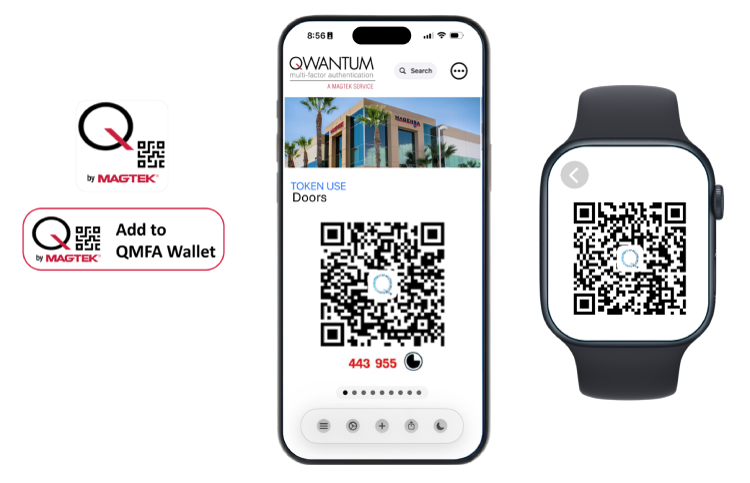
The QMFA Wallet (iOS/Android) acts as a secure repository specifically for saving and managing Qwantum Tokens. Now, with Major Security and Performance Upgrade, the Wallet introduces dynamic token sharing, streamlined provisioning, and an entirely redesigned navigation system that amplifies your control and transaction security.
Displaying Qwantum Tokens as QR Codes to a barcode-enabled device, including Dyna Devices by MagTek, allows for secure reading and authenticated access into various physical and digital systems. It also eliminates the use of usernames and passwords as knowledge-based authentication data and eliminates Personally Identifiable Information (PII).
What kinds of tokens can you store?
- Simple text: Store any plain string of data you need to access quickly.
- URLs/UIRs: Tokens that, when scanned, open a specific web link.
- URLs/URIs with integrated data: Seamlessly access websites and automatically input token data or TOTP codes into the correct fields.
What Authentication Methods are Supported?
- SMS-Based One-Time Codes (OTC) or multi-use Timed Access Codes (TACs): Receive real-time generated codes via SMS or email.
- Time-Based One-Time Passwords (TOTP): Keep your dynamic security codes readily available using the QMFA Wallet app for iOS and Android.
How does it work?
The app displays your saved tokens as scannable QR codes. When you scan a QR code:
- Open doors instantly: Present your token to an authorized MagTek Dyna Device integrated with your access control system and locked doors become unlocked.
- URLs/URIs open instantly: Your default browser launches and takes you directly to the website.
- Automated data entry: For URLs/URIs with tokens or TOTPs, the app automatically pastes the required information into the designated fields on the webpage. This saves you time and reduces errors.
QMFA streamlines your digital interactions, making it faster and more secure to access online services and information.
Using the QMFA Wallet app for iOS and Android
The QMFA Wallet app lets you manage and view all your digital tokens with an intuitive, modern interface. The latest version introduces new navigation menus for core features, global control, security, and support.
Redesigned Navigation and Control
To Add & Provision a Token:
- New Token Creation: Click the Plus Sign icon on the bottom menu bar to start the flow.
- Instant Provisioning: Scan a properly formatted QPass QR Code directly from the Add New Token form, or manually enter the data.
- Customize Visual Identity: Optionally specify an Image URL during creation to add a custom visual identifier instead of the default. (Note: The image URL cannot be modified after saving).
- Save Your Changes: Press "Add Token" to save.
Accelerated Access & Management
Quick-Access Options (Force Touch/Long Press)
Force Touch or long-press on any token's QR code (in QR View) to instantly reveal a dynamic menu:
- Secure QPass Transfer: Quickly and safely transfer eligible tokens to another QMFA Wallet user. (Tokens with a secret/TOTP are single-user and cannot be shared).
- Open in Browser: Instantly launch the token's associated URL in your device’s default browser.
- External Link Sharing: Securely share the web link via native mobile OS sharing options (Email, Messages, etc.).
- Quick Data Copy: Instantly copy the raw information stored within the QR code directly to your clipboard.
Simplified Management & Sorting
- Streamlined Deletion: On the Managed Tokens Page, simply swipe right-to-left on any token listing to initiate the deletion process.
- Dynamic Sort Order: Use Force Touch/Long Press (press firmly, then drag-and-drop) on a token in List View to change its display order instantly. This order also synchronizes immediately with the Apple Watch app.
- Unlimited Tokens: The app allows you to add an unlimited number of tokens.
To Use a Token:
- Open the App: Tap the app icon on your home screen to launch the QMFA Wallet app.
- Select your preferred view: Use the View Toggle on the bottom menu to switch between QR View (swipe side-to-side) and List View (swipe up-and-down).
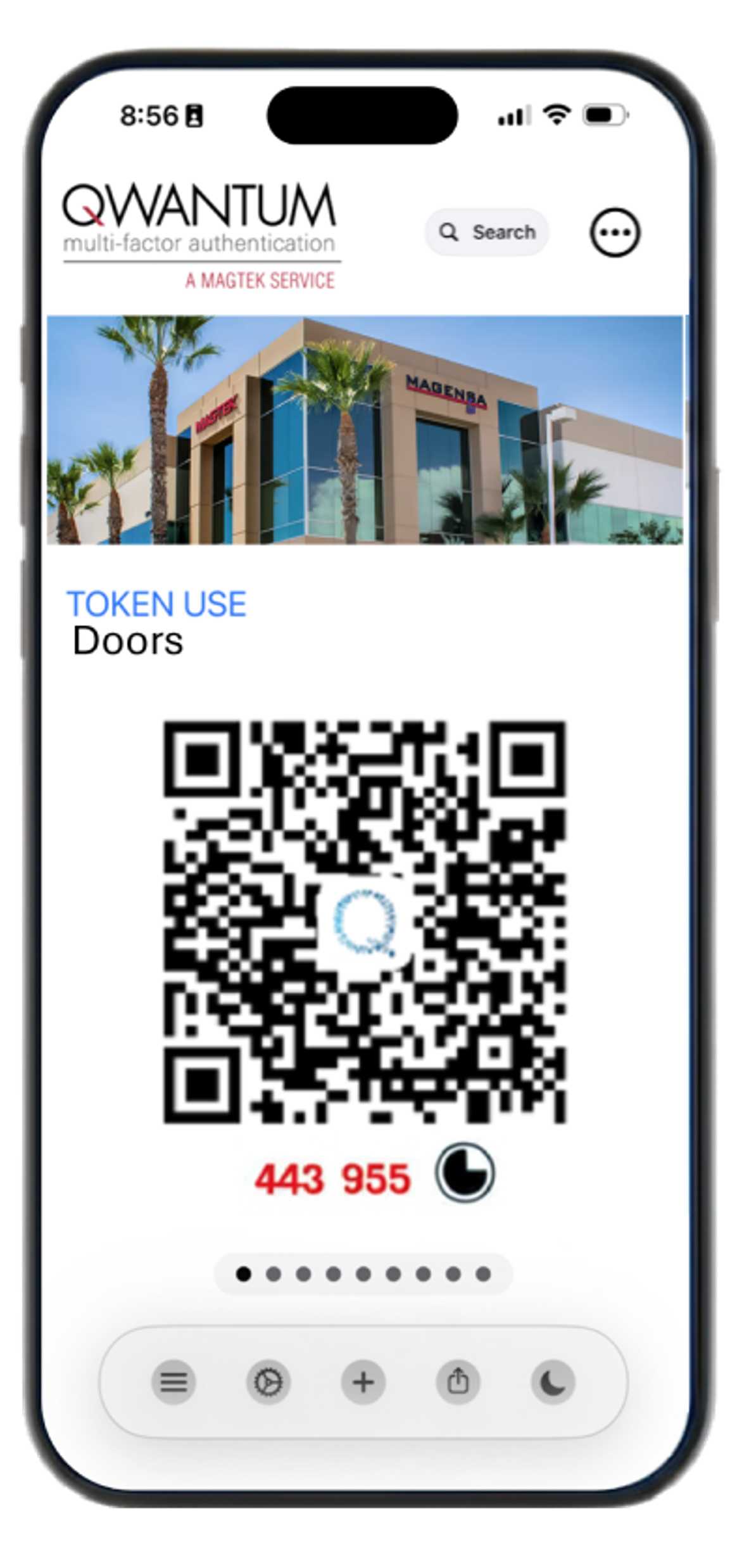
- Select a Token: Choose the specific digital token you want to use, identified by its "Token Use."
- Display QR Code: A QR code for your selected token will appear on your screen, ready for scanning by an MMS Dyna Family device with BCR.
- Scan: Hold your iOS or Android phone in front of a QR code reader on an MMS Dyna Family device with BCR. The device automatically reads the necessary information, including any embedded TOTP.
- View TOTP (Optional): If you need to see the TOTP manually for entry, locate it on the screen. It will appear on the phone app in red text beneath the QR Code and it will show a countdown timer changing every 30 seconds from 0 seconds and 30 seconds past the minute.
Use Cases: Solving Today’s Core Authentication Problems.
Move Beyond PINs, Passwords, Cards, and Cloned Credentials.
In a world of increasing digital threats, traditional security measures are no longer enough. Magnetic stripes, NFC tages and QR Codes can be cloned. PINs and passwords can be stolen or guessed, and static credentials that contain PII create persistent vulnerabilities. The Qwantum Platform solves these problems by removing static secrets entirely. Each authentication event is dynamically tied to a real user, their specific Qwantum Token, a device such as a host computer or mobile phone/tablet, and that precise moment in time, creating an unforgeable bond of trust.
Flexible Authentication for Every Need
QMFA provides versatile methods to balance security and user convenience.
- One-Time Codes (OTC): For high-security, short-lived events like transaction approvals or password resets, OTCs provide a single-use code delivered via SMS, email, or a mobile app. These codes expire after their one and only use, typically within a few minutes.
- Timed Access Codes (TAC): Ideal for longer-term or repeated access, such as facility entry or event check-ins. A TAC can be configured to last from an hour to a full day or be limited by the number of uses. They are delivered securely via an app, QR code, or an embedded digital pass.
- Time-Based One-Time Passwords (TOTP): For situations requiring strong, continuous authentication, TOTPs offer automatically regenerating codes. The QMFA Wallet app creates a new code every 30 to 60 seconds. These codes are not sent to you; instead, you generate them directly on your phone when needed, making them highly resistant to interception.
Our framework is built for the real world
The Qwantum Platform empowers you to implement secure physical and digital access, streamline member and identity credentialing, and protect your most high-risk transactions. It also offers a sustainable, eco-friendly alternative to issuing plastic cards and physical IDs. From controlling physical and logical access to issuing and revoking credentials remotely, Qwantum Tokens can adapt to your operational needs.
Perfect for Demanding Industries
The Qwantum Platform and QMFA are engineered for environments that demand secure yet flexible access. It is an ideal solution for:
- Private Clubs: Enhance the member experience for dining rooms, gyms, and gaming facilities.
- Casinos: Manage secure access for staff and VIP guests to private gaming rooms, loyalty information and data.
- Healthcare: Manage secure access for staff and patients to sensitive areas and data.
- Banking: Manage tellerline identification for authenticated access to account data.
- Retail: Modernize the checkout process by replacing vulnerable PINs and Paswords with secure Timed Access Codes.
- Facilities: Streamline employee and visitor access for shared spaces such as record rooms, server rooms, executive offices, conference rooms, event venues, or building access.
The Qwantum Difference
Unlike legacy systems, the Qwantum Platform delivers a variety of token options while enabling frictionless multi-factor authentication that is built for today and ready for tomorrow. Our platform is OS-agnostic, supports Apple and Google Wallet, and is API-ready for seamless integration. With no personally identifiable information (PII) shared or stored at the point of validation, and no need for expensive PIN pad or hardware upgrades, you can deploy a superior security solution with confidence.
Key advantages include:
- Zero PII shared at the point of validation
- Drop-in SDKs & APIs for easy integration
- Customized claims for asserting information about the user or the access event
- No new hardware or PIN pads required
- Green, secure, and instant deployment
Ready to Modernize Trust?
The Qwantum Platform by MagTek brings tokenization and authentication into the 21st century—with flexibility and security, but without PINs and passwords, without friction, and without compromise. Use it with the infrastructure you have today and build on it for the challenges of tomorrow. Deploy trust that scales.
Using our APIs and extensive online documentation, your organization can provision Qwantum Tokens and QMFA in minutes, not months.
Frequently Asked Questions (FAQs)
General App Information
Q: What is the Qwantum Platform?
A: The Qwantum Platform is a security framework that harnesses tokenization and authentication. It creates digital tokens in real time to replace old security methods like cards, tags, usernames and passwords. The platform modernizes how you manage identity and access, helping to prevent fraud.
Q: How is the Qwantum Platform different from older security systems?
A: Unlike traditional systems, the Qwantum Platform eliminates static information like passwords or personally identifiable information (PII). Each authentication event is unique, tied to a user, their token, their device, and the exact moment in time. The platform is flexible, OS-agnostic, and can work with your existing hardware.
Q: What are the main benefits of the Qwantum Platform?
A:
- Enhanced Security: It removes static credentials, which are vulnerable to being stolen or guessed.
- Zero PII: No personally identifiable information is shared at the point of validation.
- Easy Integration: It includes APIs and SDKs for simple integration into existing systems.
- Cost-Effective: You can use your existing hardware and do not need to purchase new PIN pads.
- Convenience: The platform is designed for a mobile-first experience, offering fast, seamless access.
Q: What are Qwantum Tokens?
A: Qwantum Tokens are dynamic, digital credentials. They are generated by the Qwantum Platform for a specific purpose, such as granting access to a facility, a website, loyalty points, even stored value. You can store these tokens in the QMFA Wallet app.
Q: What kinds of tokens can you store?
A: The Qwantum Platform can generate a variety of Qwantum Tokens and format them in the following ways:
- QR Codes: Scannable QR Codes used for physical and digital access.
- Hyperlinks: Hyperlinked URLs/URIs that can instantly open web pages.
- VAS Passes: VAS Passes for Apple and Google Wallet that use Near Field Communication (NFC) or QR codes.
- NTAGS/MIFARE Tags: Other NFC-based credentials such as Ntags and Mifare tags.
Q: What authentication factors are available as options?
A: The Qwantum Platform supports a variety of authentication factors designed for different security needs:
- One-Time Codes (OTCs): Single-use codes for high-security, short-lived events like transaction approvals. They expire after one use.
- Timed Access Codes (TACs): Tokens for longer-term access, like a facility entry. They can be set to last for a specific period or number of uses.
- Time-Based One-Time Passwords (TOTPs): Automatically regenerating codes that change every 30 to 60 seconds. You generate them on your device, making them resistant to interception.
Q: How are Qwantum Tokens used in the real world?
A: You can use Qwantum Tokens to solve many authentication problems. For example, they can:
- Control access to facilities, server rooms, or private clubs.
- Streamline member and identity credentialing in a secure way.
- Protect high-risk transactions in retail, banking, casinos, healthcare, and other industries.
- Provide an eco-friendly alternative to physical cards and IDs.
Q: What are Claims?
A: Qwantum Tokens can have customized Claims. A Claim is a piece of information asserted about the user or the access event. It is a key/value pair that contains verifiable data.
Q: Can I integrate the Qwantum Platform with my company’s existing systems?
A: Yes. The Qwantum Platform has a published API and extensive online documentation. It is designed for easy integration with your existing apps or access control systems. You can even access a sandbox environment to begin testing. Solutions architects are also available to help your team implement the platform.
Q: What is the QMFA Wallet app?
A: The QMFA Wallet app is a secure, convenient digital token wallet that transforms how you manage digital credentials.
Q: What kind of digital tokens can I store in the QMFA Wallet app?
A: You can store various types of digital tokens, including:
- Simple text strings
- URLs/URIs
- URLs/URIs with integrated data, allowing for automatic input of token data or TOTP codes into web page fields
Q: How does the QMFA Wallet app work?
A: The app displays your saved tokens as scannable QR codes. When you scan a QR code, URLs open instantly, and for URLs with tokens or TOTPs, the app automatically pastes the required information into designated fields on the webpage.
Q: What are the main benefits of using the QMFA Wallet app?
A: QMFA streamlines your digital interactions, making it faster and more secure to access online services and information.
iOS/Android App
Q: What is new about the app's navigation and look?
A: The app features a redesigned user interface (UI) with a foundational bottom menu bar for key functions (view toggle, management, add token) and a top-right Management Menu for global security and support. You can also now toggle instantly between Dark Mode and Light Mode using the Appearance Toggle icon.
Q: How do I change the view or see all my tokens at once?
A: Use the View Toggle on the bottom menu bar to switch between the QR Code View (for quick scanning) and the List View (for a comprehensive, scrollable overview of all your tokens).
Q: How do I add a new token to the iOS/Android app?
A: To add a token:
- Tap the Plus Sign icon on the bottom menu bar to launch the Add New Token flow.
- You can either scan a properly formatted QPass QR Code for instant provisioning or manually fill out the fields.
- When manually entering data, you can optionally include a Token Secret (for TOTP) and an Image URL for custom token branding.
- Press "Add Token" to save.
Q: Can I easily change the order of my tokens?
A: Yes. In List View or the Managed Tokens Page, you can use Force Touch (press firmly) on a token and then drag and drop it to its desired position. This custom sort order is instantly synchronized with your Apple Watch app.
Q: How do I access quick-sharing or link-opening actions?
A: Use Force Touch (long-press) on a token's QR code in QR View to open a dynamic menu with quick-access options like Open in Browser, External Link Sharing, and Quick Data Copy (to clipboard).
Q: Can I share my tokens with another user?
A: Yes. Using the Quick-Access menu, you can select Secure QPass Transfer to safely transfer eligible tokens to another QMFA Wallet user. Note that tokens designed for single-user security, such as those with a Token Secret/TOTP, cannot be shared.
Q: How do I delete a token from the iOS/Android app now?
A: To delete a token, navigate to the Managed Tokens Page (using the cogwheel icon). On this page, simply swipe from right to left on any token listing to initiate the deletion process.
Q: Is there a limit to how many tokens I can add to the iOS/Android app?
A: No, the app allows you to add an unlimited number of tokens.
Q: How do I use a token for scanning with my iPhone or Android phone?
A: To use a token:
- Tap the app icon on your iOS/Android phone's home screen to launch it.
- Navigate to the desired token using either the QR View or List View.
- A QR code for your selected token will appear on your phone's screen, ready for scanning by an MMS Dyna Family device with BCR.
- Hold your phone in front of a QR code reader on an MMS Dyna Family device with BCR. The device automatically reads the necessary information.
Q: How do I see the Time-Based One-Time Password (TOTP) on the iOS/Android app?
A: If you need to see the TOTP manually for entry, locate it on the screen. It will appear on the phone app in red text beneath the QR Code and it will show a countdown timer changing every 30 seconds from 0 seconds and 30 seconds past the minute. If a Token has no Token Secret, then that Token will not have a generated TOTP.
Apple Watch App Specifics
Q: What are the key advantages of using the Apple Watch app?
A: The Apple Watch app offers:
- Convenience on Your Wrist: Carry and use digital tokens directly on your Apple Watch, eliminating the need for physical cards or fumbling with a phone.
- Streamlined Access: Provides quick access for uses like opening doors or accessing websites such as the Magensa Merchant Portal.
- Security and Modernity: Incorporates QR codes and TOTP for secure, up-to-date identity verification, optimized for MMS Dyna Family devices.
- Synchronized Sort Order: The order of tokens on your Watch automatically matches the custom order you set on your iPhone.
- Effortless QR Code Retrieval: Easily bring up a QR code by scrolling on your watch.
- Hidden Complexity: The app handles technical details like TOTP detection automatically when scanned by an MMS Dyna Family device with BCR.
Q: How do I use a token with the Apple Watch app?
A: To use a token:
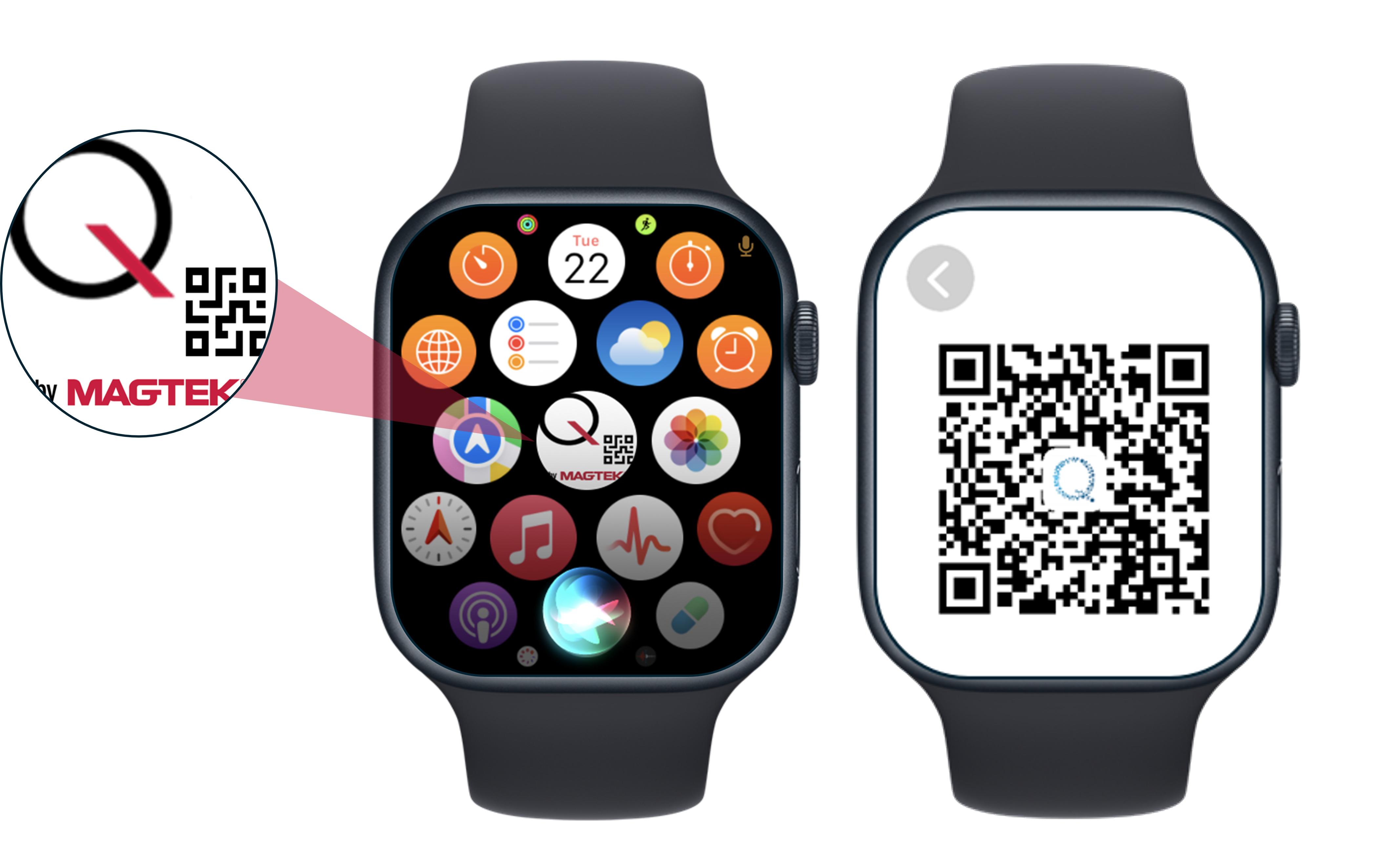
- Access the app on your Apple Watch.
- Choose the specific token you want to use from the displayed list.
- A QR code for that token appears, ready for scanning by an MMS Dyna Family device with BCR.
- Hold your Apple Watch in front of a QR code reader on an MMS Dyna Family device with BCR. The reader automatically detects the necessary information, including any hidden TOTP.
Q: Can I view the TOTP manually on the Apple Watch?
A: Yes, if you need to see the TOTP manually, you can scroll further down the screen.
Q: What systems do QMFA Tokens currently work with?
A: QMFA Tokens currently work with MagTek's Corporate Access Control systems, the Magensa Merchant Portal, the Magensa Reseller Portal, and more systems will be added in the future.
Q: Can I integrate QMFA with my existing apps or access control systems? If so, how?
A: Yes, QMFA offers a published API for integration. There is a sandbox environment using Postman, and online documentation is available to assist you. Solutions architects are also available to help you integrate QMFA into your environment.
Brand Guidelines
Welcome to the interactive brand guidelines for QMFA Wallet by MagTek. This guide provides a framework for using our brand elements consistently. Following these standards ensures a unified and strong brand identity that communicates security, convenience, and innovation.
Use the navigation to explore the different sections of our brand identity, from logo and colors to typography and tone of voice. Each section contains practical information and interactive tools to help you apply our branding correctly and effectively in your projects.
Logo
The QMFA Wallet app logo is our primary visual identifier. Its consistent and correct application is crucial for maintaining brand integrity. This section details how to use the logo, including its clear space requirements and minimum size, and provides interactive examples of incorrect usage to avoid.
Primary Logo
This is the preferred version of the logo, a horizontal lockup containing all brand elements. It should be used in most applications where space allows.
Minimum Size
To ensure legibility, the logo must not be reproduced smaller than the specified dimensions.
Clear Space
Maintain a clear space around the logo, equal to the height of the red 'Q' accent. No other elements should enter this area.
Incorrect Usage: Dos & Don'ts
Colors
Our color palette is simple, bold, and modern. It is derived from the core logo colors to create a cohesive visual system. This section provides our primary. Click on any color value to copy it to your clipboard.
Primary Colors
MagTek Red
HEX: #D21242
RGB: 224, 30, 38
CMYK: 0, 87, 83, 12
MagTek Black
HEX: #000000
RGB: 0, 0, 0
CMYK: 0, 0, 0, 100
MagTek White
HEX: #FFFFFF
RGB: 255, 255, 255
CMYK: 0, 0, 0, 0
Typography
Clear and consistent typography is essential for readability and reinforces our brand's modern and user-friendly tone. We use a combination of Inter for headings and Open Sans for body text to create a clear and legible hierarchy.
Primary Font: Inter
Used for headlines, subheadings, and key calls to action.
Headline 1
Headline 2
Subheading
Secondary Font: Open Sans
Used for body copy, descriptions, and longer blocks of text for optimal readability.
Body Text (Semi-Bold): This is an example of Open Sans used for emphasis within a paragraph. It should be used sparingly to draw attention to key information.
Body Text (Regular): This is standard body text. Open Sans provides excellent legibility for longer passages, ensuring that our communications are always clear and easy to understand. It creates a comfortable reading experience for users across all devices.
Tone of Voice
Our voice is clear, confident, and helpful, reflecting our commitment to security and ease of use. It's important that our messaging is consistent across all platforms to build trust and a strong brand personality.
Key Attributes
Secure
We communicate with confidence, reassuring users about the safety of their data.
Convenient
Our language is simple and direct, highlighting ease of use.
Innovative
We speak in a modern, forward-thinking tone.
Reliable
Our voice is trustworthy and dependable.
User-Friendly
We use empathetic and helpful language.